Authorized Dealer
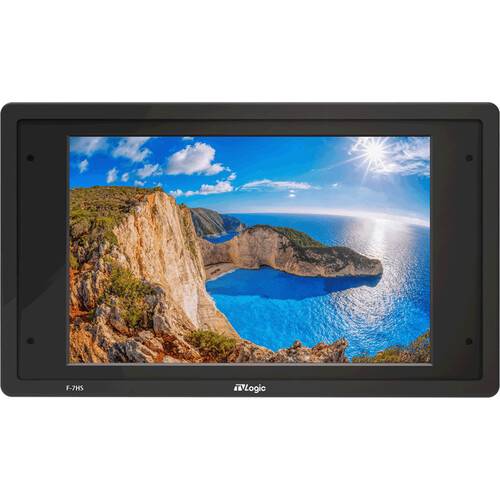
The TVLogic 7" HD Monitor with Monitor Cable & Mounting Blocks for Universal Monitor Mount from Steadicam provides a high-brightness display for use on your Steadicam stabilizer. This kit includes the TVLogic F-7HS 7"…
Product highlights and buying context
The TVLogic 7" HD Monitor with Monitor Cable & Mounting Blocks for Universal Monitor Mount from Steadicam provides a high-brightness display for use on your Steadicam stabilizer. This kit includes the TVLogic F-7HS 7" monitor, a monitor cable, and installation blocks to mount onto the Steadicam Universal Monitor Mount.
The F-7HS features a 1920 x 1200 resolution, 3G-SDI and HDMI inputs and loop outputs, and a maximum brightness of 1800 cd/m² using the peaking boost function. There are numerous built-in imaging tools, including waveform, vectorscope, markers, 3D LUTs, and more.
The F-7HS provides various color adjustment menus that enable the user to monitor the video signal.
This function takes the metadata from the ARRI ALEXA camera and displays the camera status information and the lens data system information on the OSD. Lens Data System information like lens name, focal length, iris, fps, exposure time, white balance, and more are displayed on the screen.
The F-7HS allows users to load their own created 3D LUT files generated by the color grading tools and apply them to the monitor. This function enables users to monitor the customized looks and easily compare the different on-set grading images.
LUTs for every major camera manufacturer are integrated into the F-7HS, and they can be applied to the live input video.
Thanks to the built-in gyroscope sensor, if you turn the monitor upside down, the screen is flipped automatically. You can also manually flip the screen horizontally or vertically.
The F-7HS supports the various modes of waveforms, such as wide, full, and YCbCr.
The Zone Check tool analyzes the luma (Y') level of the input image and displays the selected zone on the screen. After each pixel's Y' level is analyzed, it is displayed as a certain color or zebra pattern according to the Index on the right side of the screen.
This function displays the color components 'B-Y' and 'R-Y' of the input signals onto the X-Y axis. Two different types of vectorscope are displayed according to SD or HD input signals. The 100 and 75% scales are indicated on the vectorscope.
The Focus Assist function assigns a color to the pixels in the shape or boundary area of the image to inform the user to make the best focus. With this function, users can easily differentiate the focused area from the out-of-focus area, especially when shooting with a shallow depth of field.
Analyzes the input signal's luma (Y') and chroma information (C'), and if the input signal exceeds the designated minimum value and maximum value, the pixel will blink. This function helps the user to easily find out any unwanted level of signals and for better exposure settings.
This function allows the user to adjust the width and height of the input image and then display it at the customized aspect ratio.
The F-7HS has various marker modes that allow the user to adjust marker type, center marker, safety area, fit marker, marker mat, marker color, marker thickness, and more.
This function magnifies the input signal from 0 to 90%.
Displays the level of the embedded audio signal together with the video signal input through SDI and HDMI. Up to 16 channels are supported by SDI and two channels by HDMI. Various level meter modes help the user with convenient audio monitoring.
Timecode information is displayed on the screen, and it supports VITC and LTC modes.
This function allows the instant stop of the video and the monitoring of the frozen image.
Red and green channels are not used, and only blue or monochrome channel is used to display the screen. This function is used to adjust the color tones (tones and saturation) of the screen using the SMPTE color bar.
This function allows the user to check the blanking area and synchronize signals by displaying the horizontal and vertical intervals in the center of the screen.
Additional Details
Loading…
